Home
Access to The Client Portal
A client can be given access by the Franchisee:
Go into the Warehouse > Select CRM > Find Client > From the Company Profile > Select Client Settings
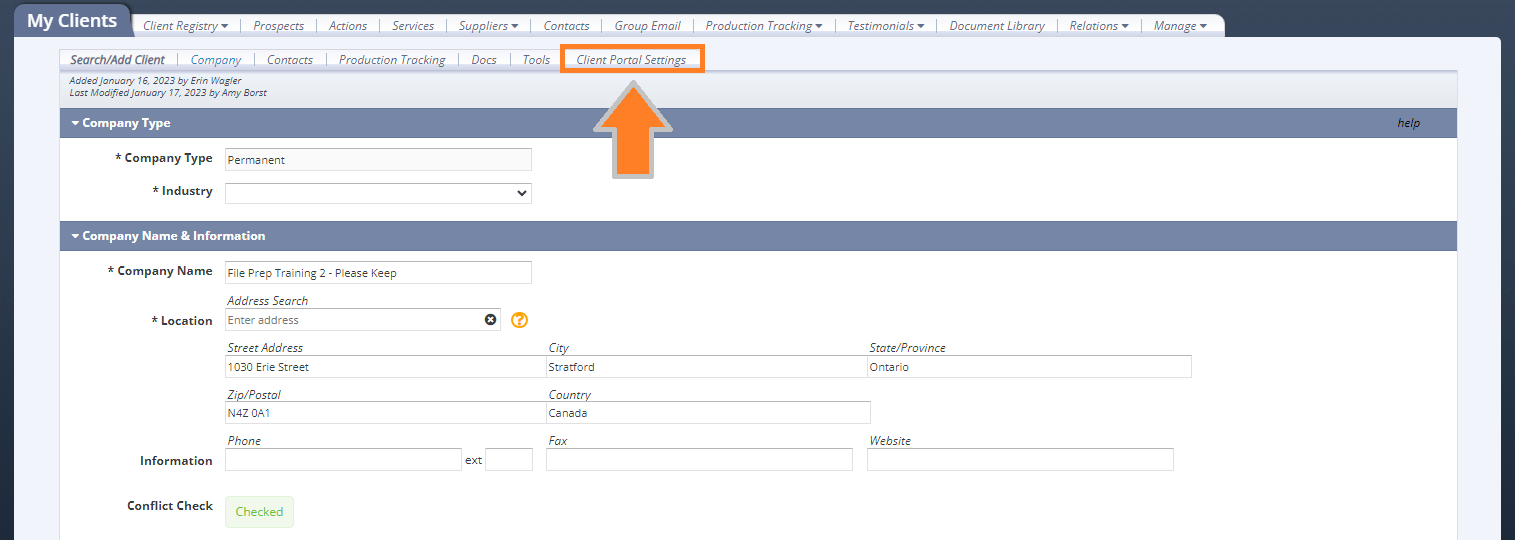
View of Client Portal Settings
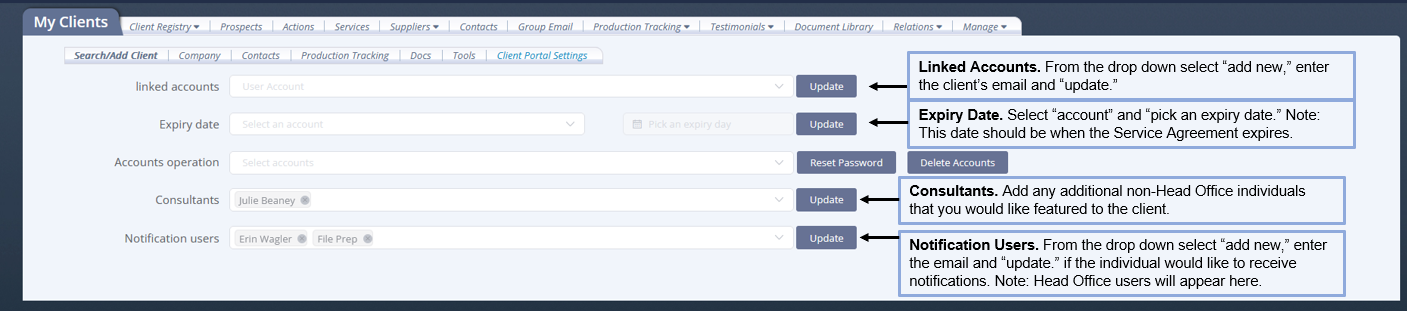
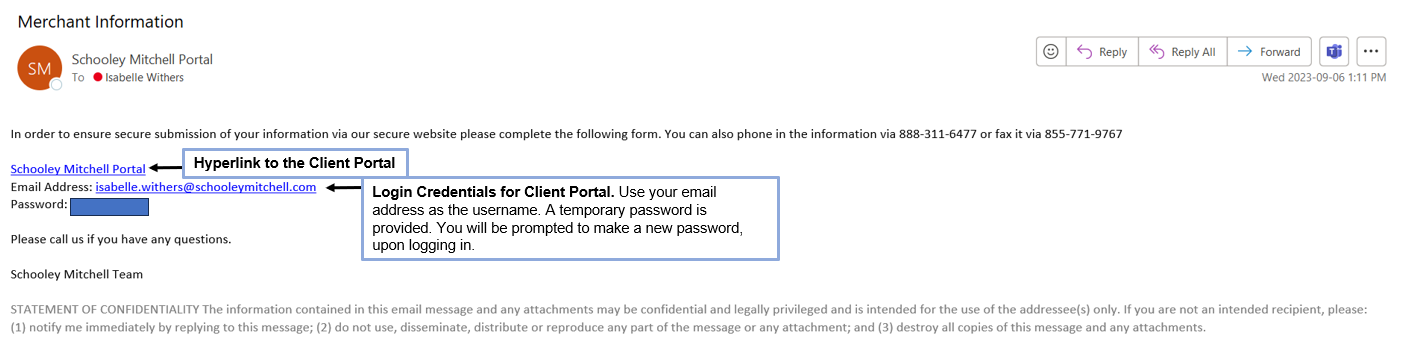
Once an individual has been successfully added they will receive an email with a link to the Client Portal and Login Credentials.
From there, you will be prompted to Login to the Client Portal.
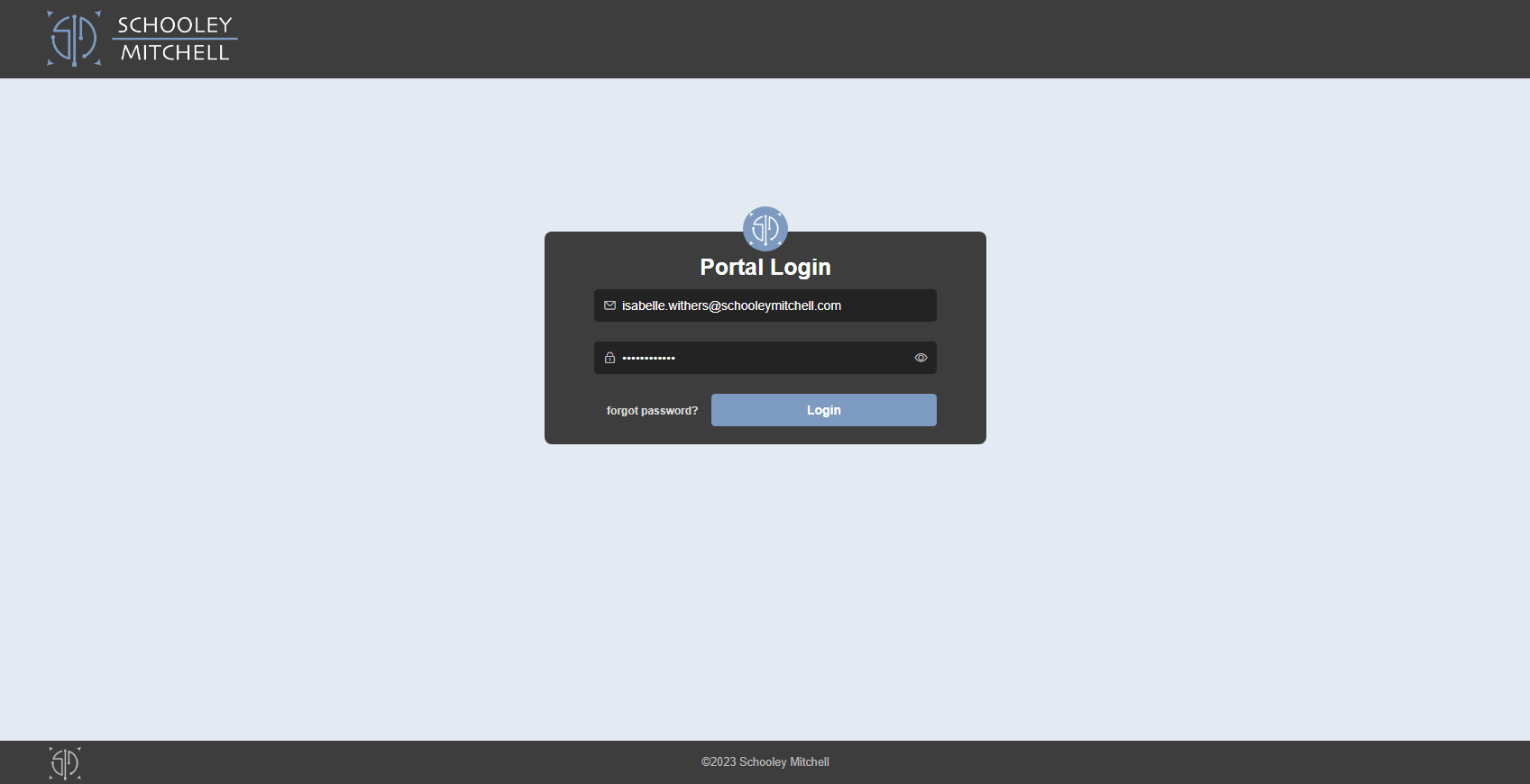
Client Portal will require a 2-step verification code. The code will be sent to their email.
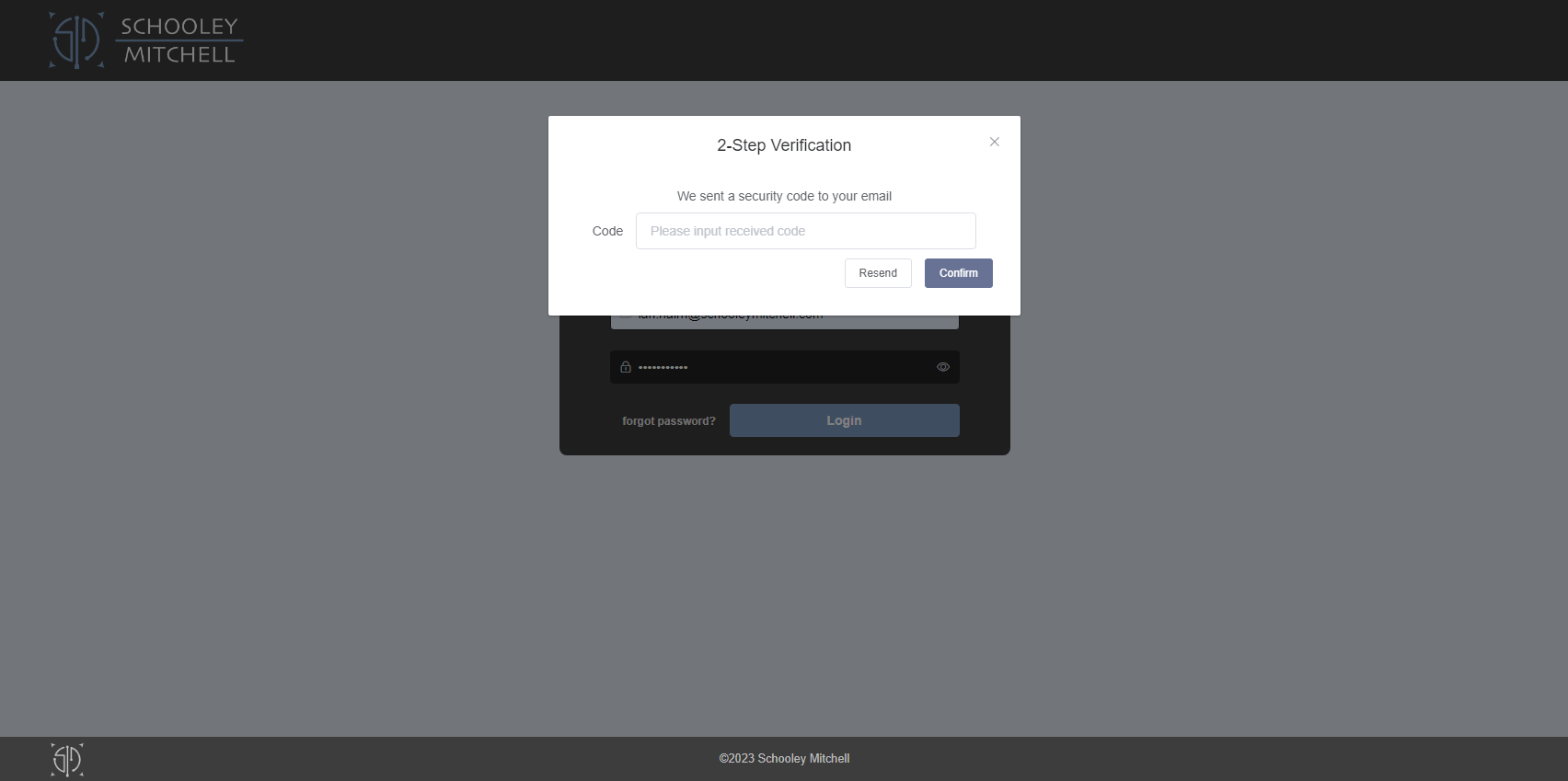
The next screen will prompt a 2-step Verification code which is sent to their email.
Once the code has been entered, you will enter the Client Portal.
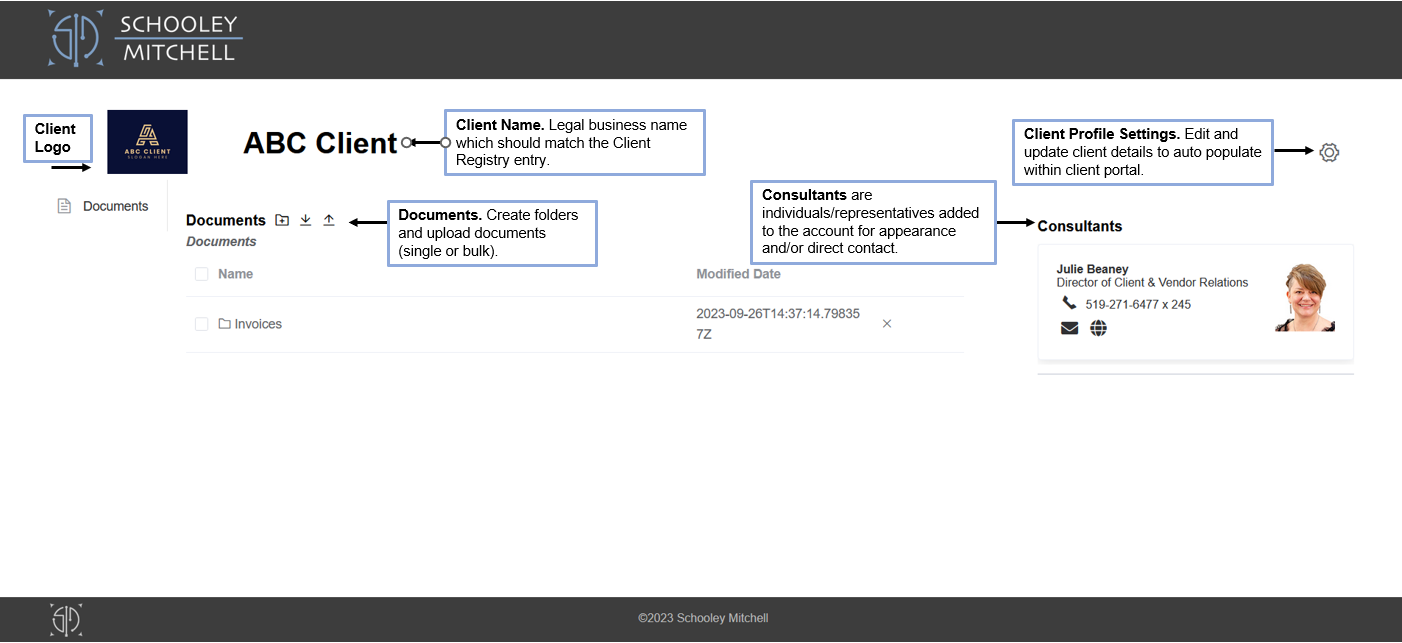
When the client is first on-boarded to the client portal all relevant company information should auto-fill into the portal. Please note: When details are edited within the client portal they will not automatically update in the CRM.
Client Logo: Added and uploaded via Client Profile Settings.
Client Name: Automatically populated but can be updated in Client Profile Settings.
Consultants: Automatically populated from CRM. Email icon allows client to email directly. Globe icon is a direct link to splash page.
Documents: Upload a single document or multiple at once. Create folders to help with document organization.